
Projects
Tags
Tags are how you cut across projects when the folder structure isn't enough. Use them for clients, types of work, status, year, anything.
Tusk supports two levels of tags:
- Project tags: applied to whole projects. Filter the projects overview and the search page by these.
- File tags: applied to individual files inside a project. Useful for marking selects, hero shots, client-approved exports, files to delete, anything you want to find later.
Tags are many-to-many on both levels. A project can have any number of tags, a file can have any number of tags, and the same tag can be applied to as many things as you want.
Creating and editing tags
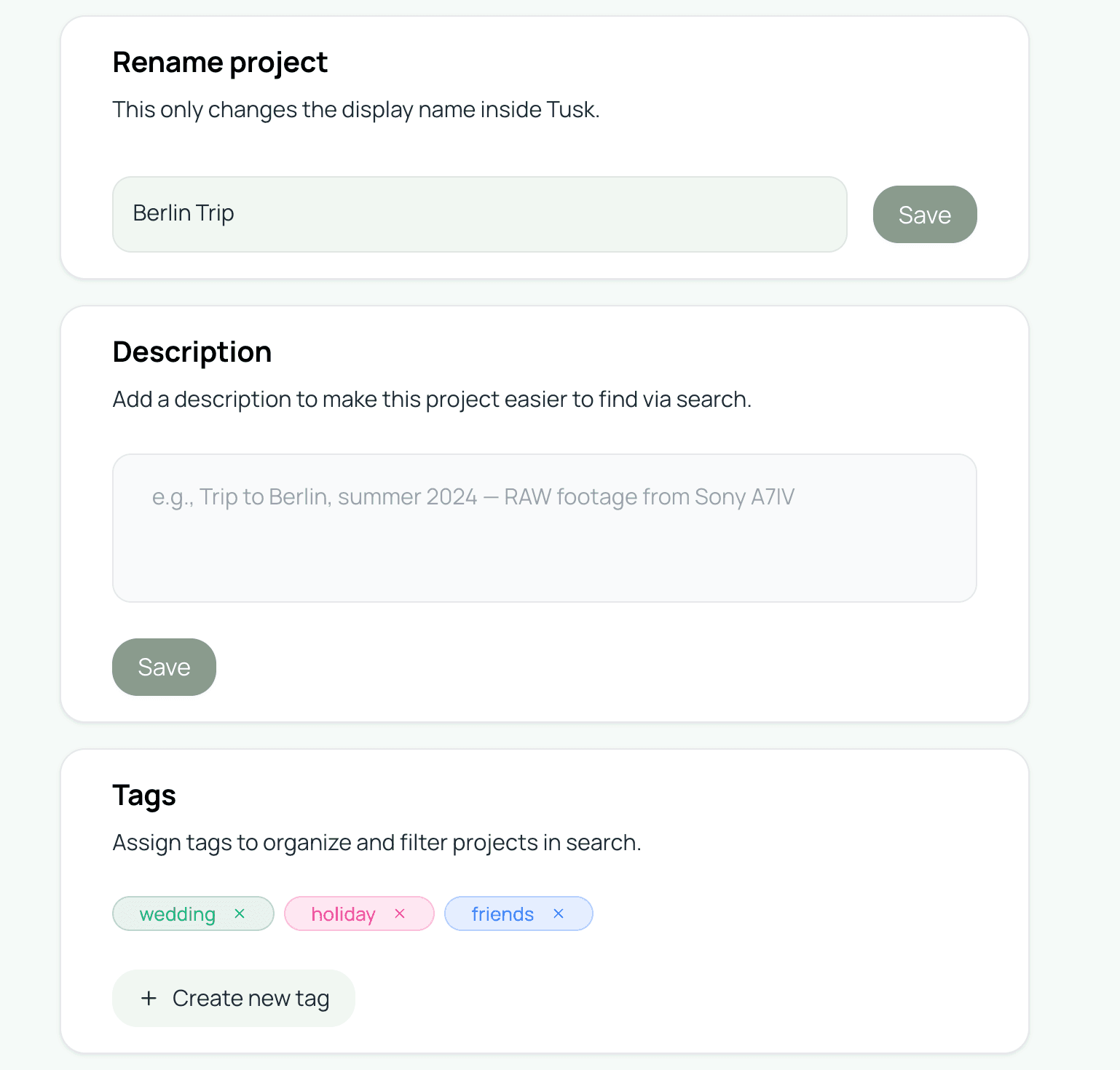
The tag picker in the project settings page (and on the file info modal) lets you create new tags inline. Type the name, pick a color, save. The same tag picker appears in search filters once at least one tag exists.
Edit a tag's name or color from the search page's tag-filter section. Renaming a tag updates it everywhere it's applied. Recoloring is purely cosmetic; the color shows up in the project header, on file info modals, and in tag filter chips.
Tagging projects
Open the project's settings page and use the tag picker to add or remove tags. Project tags show up next to the project name on the projects overview, making it easy to scan for “all wedding projects from 2026” at a glance.
Tagging files
Open the file info modal from the file row's context menu (three-dot menu > File info). Add or remove tags from the modal. File tags persist across renames and moves; they live with the file as long as Tusk is tracking it.
Filtering by tag
The search page has a tag filter in the sidebar. Pick one or more tags to narrow results to projects and files that have all of them applied (logical AND). Combine with the file type filter or a text query for tighter searches.
The projects overview also supports tag filtering directly (no need to go to search if you only want to filter, not search by name).
Tag conventions that work
A few tagging patterns we've seen people get value from:
- Client tags:
client_smith,client_acme. One per client. - Status tags:
active,delivered,archive. Move projects through them as the work completes. - Type tags:
wedding,commercial,corporate,personal. Lets you filter to one type instantly. - Year tags:
2026,2025. Useful for archive filtering. - File-level marker tags:
hero,selects,delete_when_done. Survive across reindexes; great for finding the 30 selects out of 500 files months later.
Don't over-tag
Deleting tags
From the search page's tag-filter section, click the edit menu next to a tag and choose Delete. The tag is removed from every project and every file it was applied to. The files and projects themselves are not touched.
Related