
Concepts
Where Tusk lives on your Mac
A short tour of where Tusk runs, what it stores, and what's actually happening in the background.
Tusk is a regular Mac app, but it spends most of its life invisible. The window is for setup, browsing, and decisions. The day-to-day syncing happens in the background whether the window is open or not.
The window
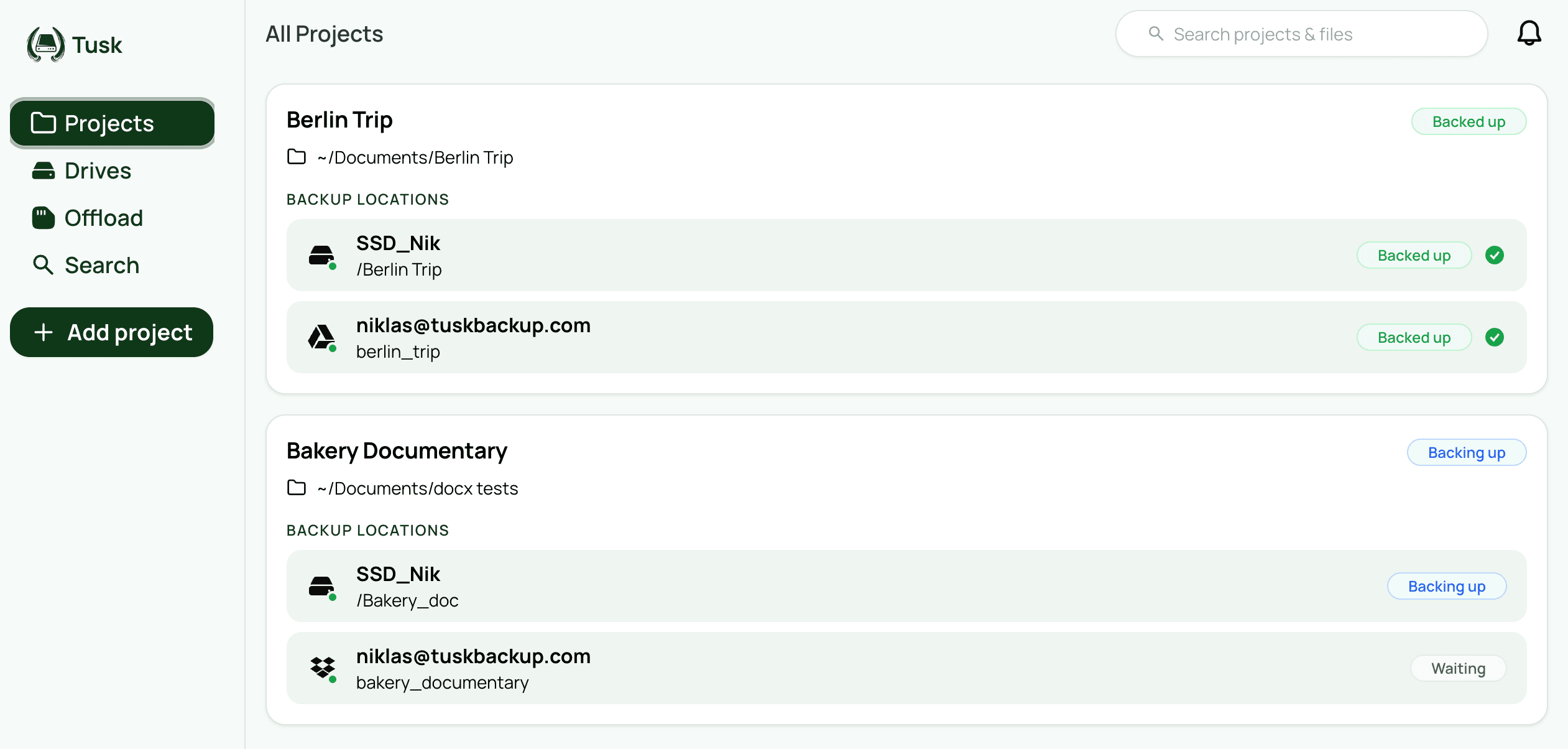
The window is what you open from your Applications folder or Dock. The sidebar shows Projects, Drives, Offload, and Search, plus settings when you need them. You spend time here when you create a project, add a destination, run a restore, or check on what's happening. Once a project is set up, you rarely need to come back unless something needs your attention.
The menu bar icon
When you close the window, Tusk doesn't quit. It keeps running and an icon stays in the menu bar at the top of your screen. Click the icon to reopen the main window. Right-click for Open and Quit. Double-click does the same as left-click.
Quitting from the menu bar (or with ⌘Q in the window) actually stops the app. Any active syncs pause. When you launch Tusk again, it picks up where it left off, including any in-progress offload sessions.

What runs in the background
With the window closed, Tusk continues to:
- Watch every primary folder for changes (new files, edits, renames, moves, deletions).
- Run queued transfer and verification jobs.
- Detect when external drives connect or disconnect.
- Continue any in-progress offloads from SD cards or external sources.
- Send notifications when something needs your attention.
Active project pages (a project window the user has open) do a few extra things, like watching the backup paths in real time and re-verifying cloud destinations on a heartbeat. With no window open, the background process is doing the queued work but not the live verification.
Open at login
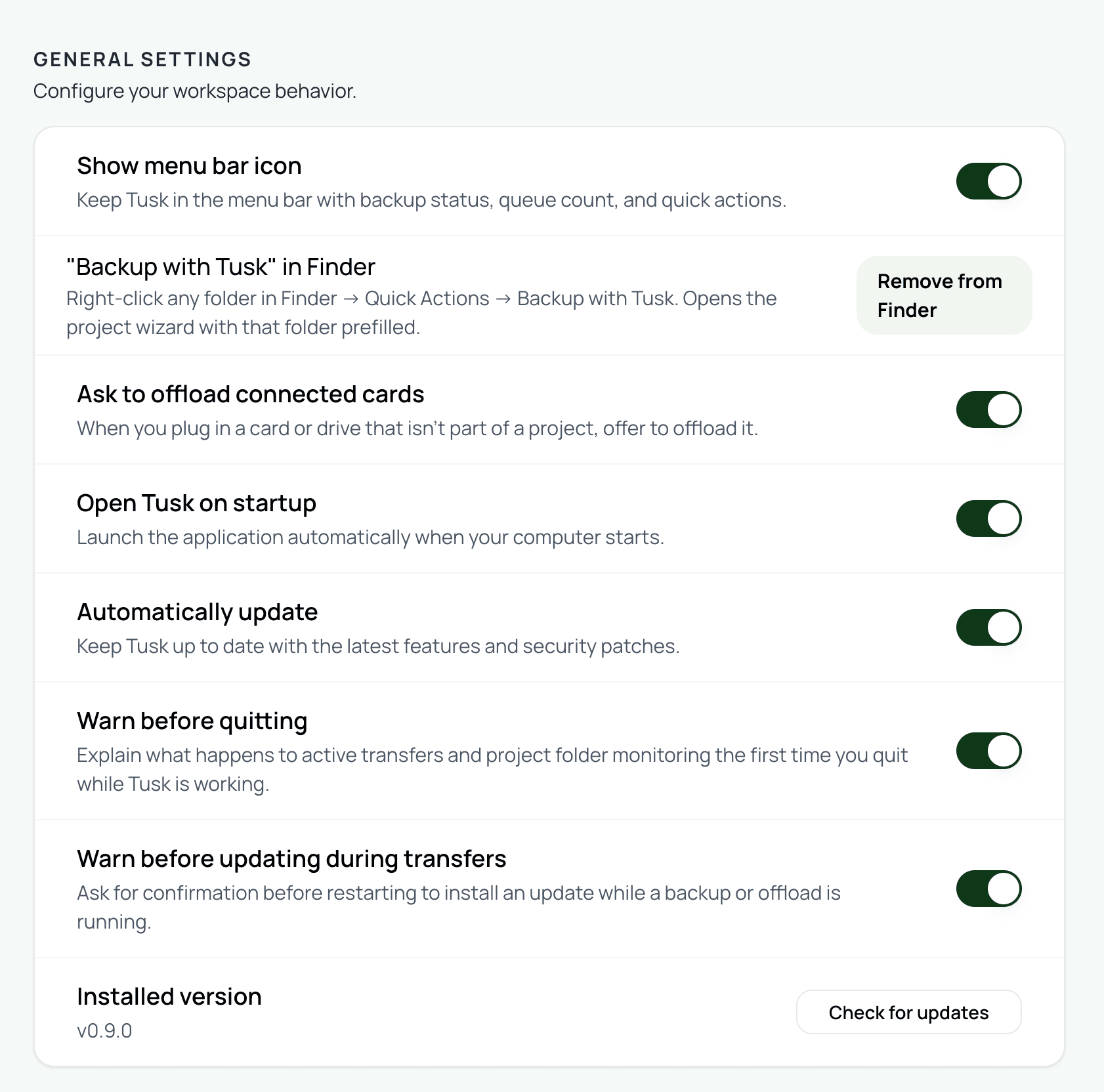
Tusk can launch automatically when you log into your Mac. Toggle this in Preferences → General → Open Tusk on startup. When on, the app starts in the background (no window) so it's ready to sync as soon as you plug in a drive.
Where Tusk stores its data
Tusk keeps a small SQLite database with the index of every project, every file, every destination, every job. This lives in your Mac's Application Support folder under ~/Library/Application Support/Tusk/. Logs live next to it.
Credentials (S3 access keys, Google Drive and Dropbox OAuth tokens) are encrypted with macOS's built-in safe storage and stored in your login Keychain. They are never sent to Tusk's servers. When you save credentials for the first time, macOS will ask for your login password to authorize Keychain access.
Open the logs folder fast
What Tusk does and doesn't do to your files
Tusk reads from your primary folders and writes to your backup destinations. It also writes to your primary folder when you restore files from a backup. That's it.
Destructive actions (deleting local copies, deleting from backups) go through a safety wrapper that refuses to touch protected macOS paths like /System, /Library, /usr, ~/Library, ~/.Trash. You can't accidentally damage your OS by pointing a project at the wrong place.
Local file deletes go to the macOS Trash by default, with a fallback to fs.unlink()if Trash isn't available. The bulk delete-local action uses the Trash. Files removed by Tusk are recoverable until you empty the Trash.
Related